
Wix
Add a LiveChat widget to your Wix website and answer questions from visitors on desktop and mobile.
- LiveChat

Add LiveChat to your Wix website
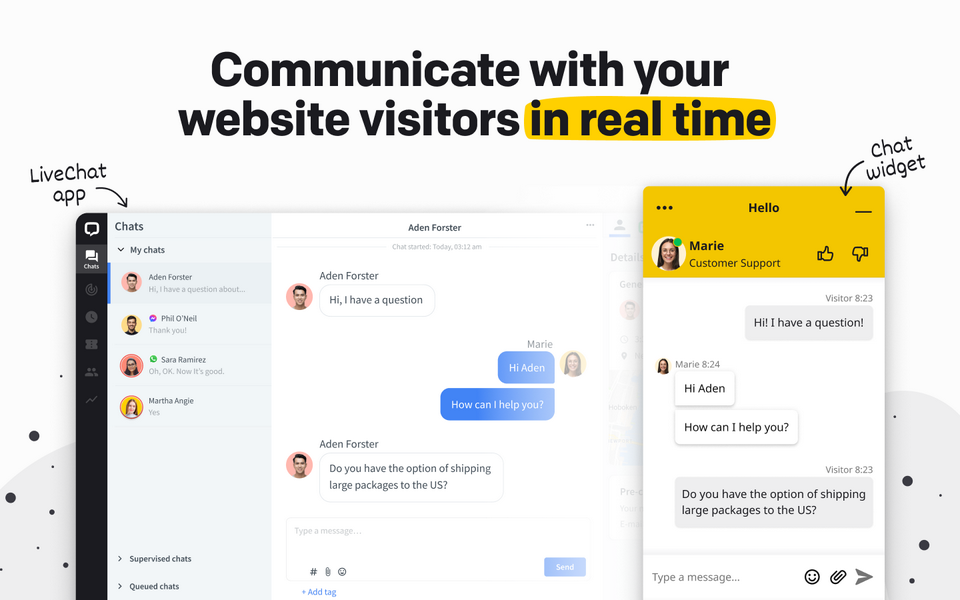
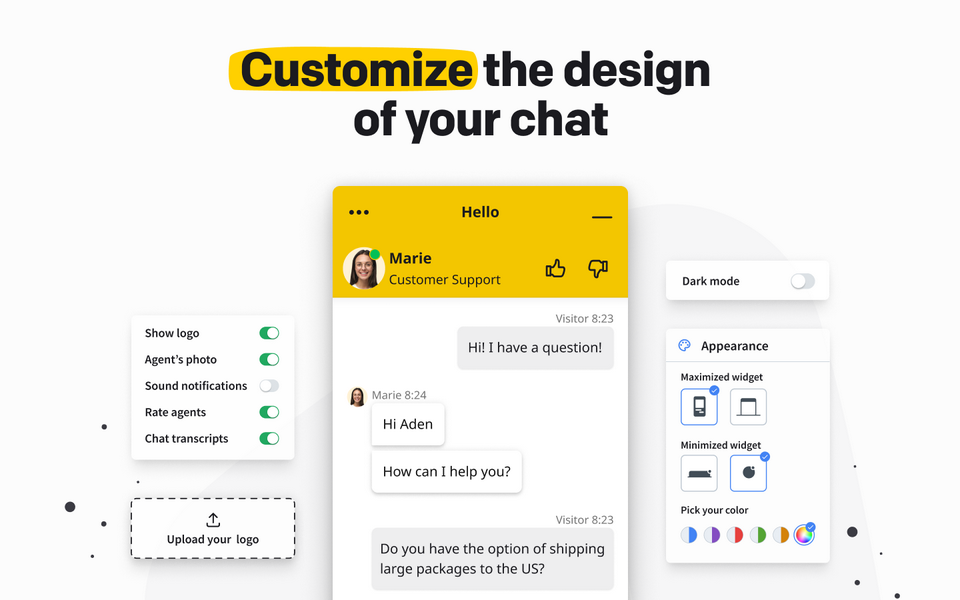
LiveChat for Wix lets visitors ask your business questions through a chat widget. Your team replies in LiveChat. Install the Live Chat app by Text from the Wix App Market, connect your account, and publish the widget on your site.
When to use LiveChat on Wix
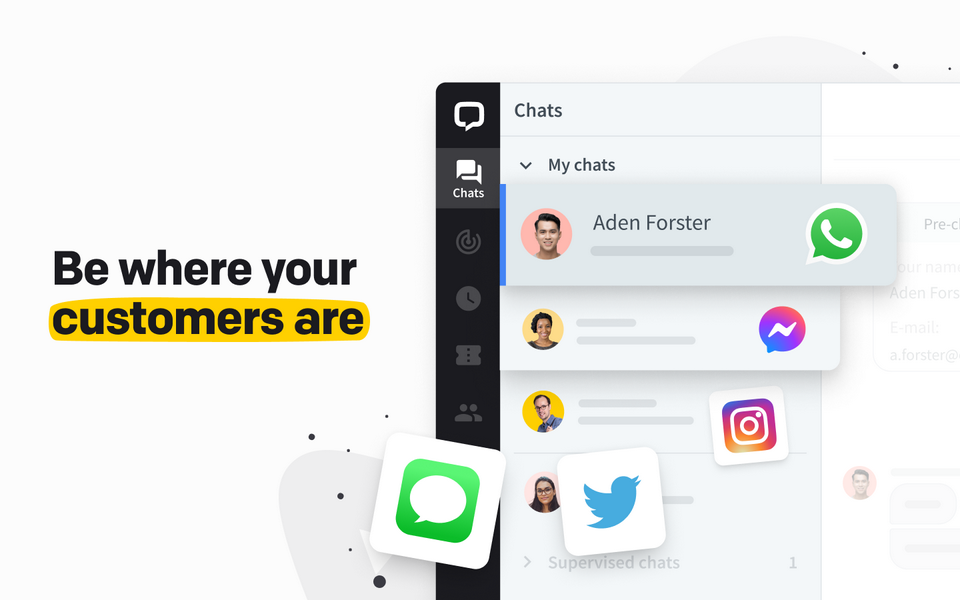
Choose this integration when you want your Wix website's conversations handled in LiveChat, especially if your team already supports other websites there. You can connect multiple Wix sites, invite visitors to chat based on the page they are reading, and answer from the LiveChat mobile apps.
A service business could use a greeting on its consultation page to ask whether a visitor needs help choosing an appointment. Your agent can explain the service before the visitor books. Page-based greetings depend on your LiveChat plan; the integration does not book the appointment for you.
How is this different from native Wix chat?
Wix's own chat tools use Wix Inbox. This app connects your website to a separate LiveChat account, where your team handles the conversation. Choose based on the workspace your team uses and the chat features you need. You do not need to switch from native Wix chat just to add a chat button.
What you need before installation
You need access to install apps and publish changes on your Wix site, plus a LiveChat account. The Live Chat app by Text offers a 14-day free trial. Continued use requires a paid subscription, separate from your Wix website plan. Compare LiveChat pricing and features.
Start from the app listing and select your site. Follow the setup shown for that site, as Wix editor screens can differ.
How to add LiveChat to a Wix website
- Open the Live Chat app in the Wix App Market and select Add to Site.
- Approve the connection, then create or sign in to your LiveChat account. Confirm your email if prompted.
- Select the Wix site and switch its chat widget on.
- In Wix Manage Apps, select Complete Setup next to LiveChat.
- Select Add to Site, then Publish.
- Open your published website on desktop and mobile. Send a test message and check that your team can reply from LiveChat.
The Wix installation tutorial illustrates this App Market setup. If your editor does not show these controls, ask LiveChat support to confirm the setup for your site.
Wix live chat questions
Can customers continue a conversation after leaving?
Yes. With asynchronous conversations, customers can receive an email notification when you reply and respond by email or through the widget.
Can I connect multiple Wix sites?
Yes. Select each site in the setup and enable its widget. Publish and test each site you connect.
Does this connect me to Wix customer support?
No. This app connects your site's visitors with your business. Contact Wix Customer Care for help with your Wix account or website builder.
Key features
Benefits
App terms
Legal Terms
By installing this app, you agree to the Marketplace Terms and App Privacy Policy.
Support
How to use this app
Follow the app tutorial with setup instructions on how to use and properly configure this app with your LiveChat account. To get help and support contact Text. You can also suggest improvements or request new features in the upcoming versions of Wix.
Frequently asked questions
What does the “Verified” status mean?
In LiveChat, we always appreciate creative and problem-solving apps, so at our own sole discretion, from time to time, we may grant some applications the “Verified” status (represented by a badge or so-called badged applications). The “Verified” status confirms only that an application went through our usability review from the user's perspective. In any case, it is the Application Provider who has full responsibility for the application and its security level towards clients and any other third party.