
Squarespace
Add live chat to your Squarespace store. See cart contents and total value while answering shoppers.
- LiveChat
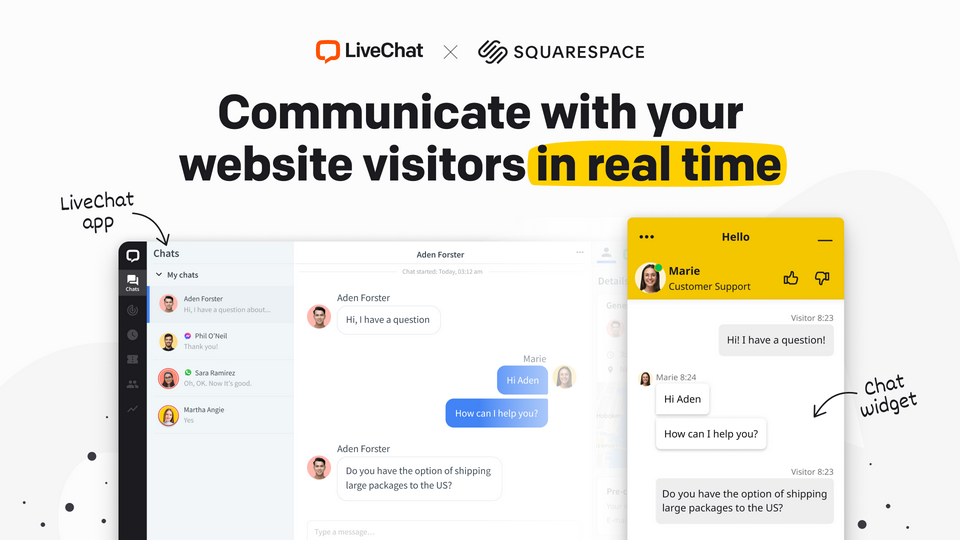
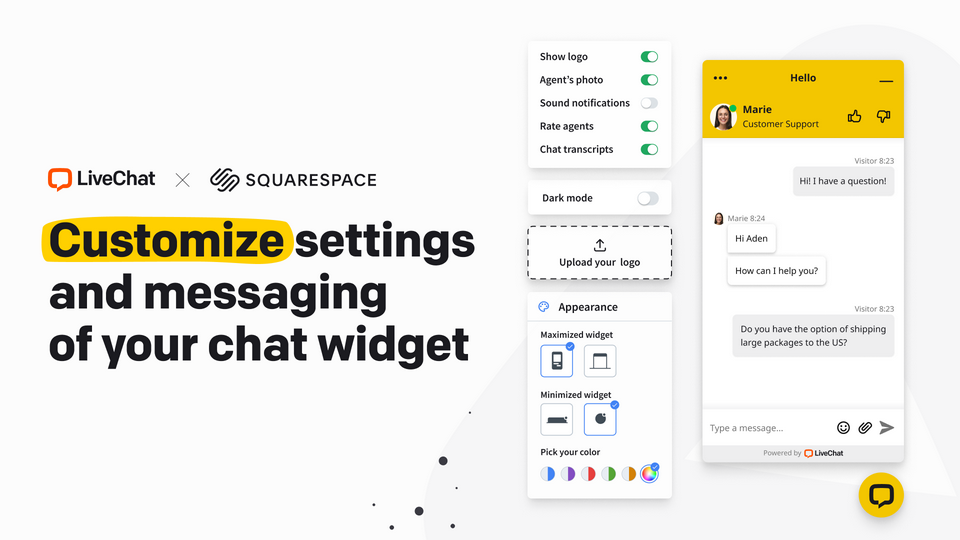



A Squarespace chat plugin for customer support
Add a Squarespace chat widget so shoppers can ask about products without leaving your store. Your team receives and answers those messages in LiveChat.
This integration suits stores where agents need to discuss the products in a customer's cart. A shopper choosing a gift can ask about sizing, and the agent can check the selected item during the conversation.
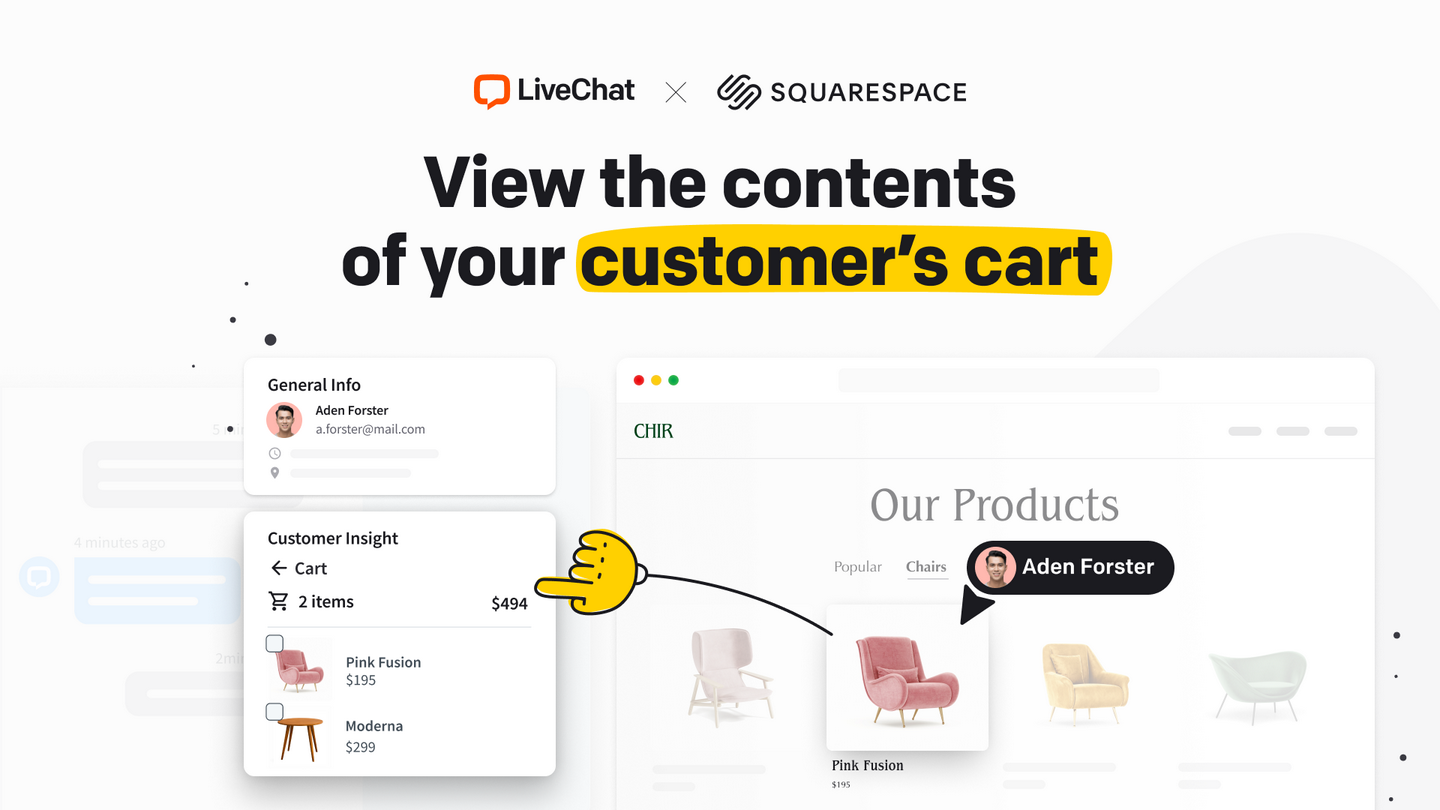
See cart details while you help a customer
The Squarespace integration includes Customer Insight. During a conversation, open the Squarespace panel in LiveChat to see the customer's cart contents and total value. Check which items they mean without asking them to copy product names into the chat.
Requirements and pricing
You need access to the Squarespace site you want to connect and a LiveChat account. Squarespace allows extension connections on all plans and does not charge an extra connection fee. Your site still needs the Squarespace commerce features required for the store you want to run. Your Squarespace subscription and LiveChat subscription are separate.
LiveChat offers a 14-day free trial. To continue after the trial, choose a paid plan. Check LiveChat pricing for current rates and features, and Squarespace's extension requirements before connecting your store.
How to add LiveChat to Squarespace
- Find LiveChat in Squarespace Extensions and choose the website to connect.
- Authorize the connection, then create a LiveChat account or sign in.
- Select your store in the integration settings and enable the chat widget.
- Open your storefront and check that visitors can start a conversation.
See the Squarespace live chat setup guide for screenshots of each step.
Squarespace live chat questions
Is this a Squarespace chat plugin or an extension?
Install this integration through Squarespace Extensions. It connects your store to LiveChat, where your team handles the conversations.
Do I need to paste code into Squarespace?
No. This setup uses the LiveChat extension. Connect your site through Squarespace Extensions, authorize access, and enable the widget in LiveChat.
Where do I turn the widget on or off?
In LiveChat, open Apps, then App Settings and Squarespace. Select the connected store and change its widget setting.
Key features
Benefits
App terms
Legal Terms
By installing this app, you agree to the Marketplace Terms and App Privacy Policy.
Support
How to use this app
Follow the app tutorial with setup instructions on how to use and properly configure this app with your LiveChat account. To get help and support contact Text. You can also suggest improvements or request new features in the upcoming versions of Squarespace.
Frequently asked questions
What does the “Verified” status mean?
In LiveChat, we always appreciate creative and problem-solving apps, so at our own sole discretion, from time to time, we may grant some applications the “Verified” status (represented by a badge or so-called badged applications). The “Verified” status confirms only that an application went through our usability review from the user's perspective. In any case, it is the Application Provider who has full responsibility for the application and its security level towards clients and any other third party.