
Unbounce
Add a chat widget to your Unbounce landing page so visitors can ask about your offer before filling out a form.
- LiveChat
Live chat for Unbounce landing pages
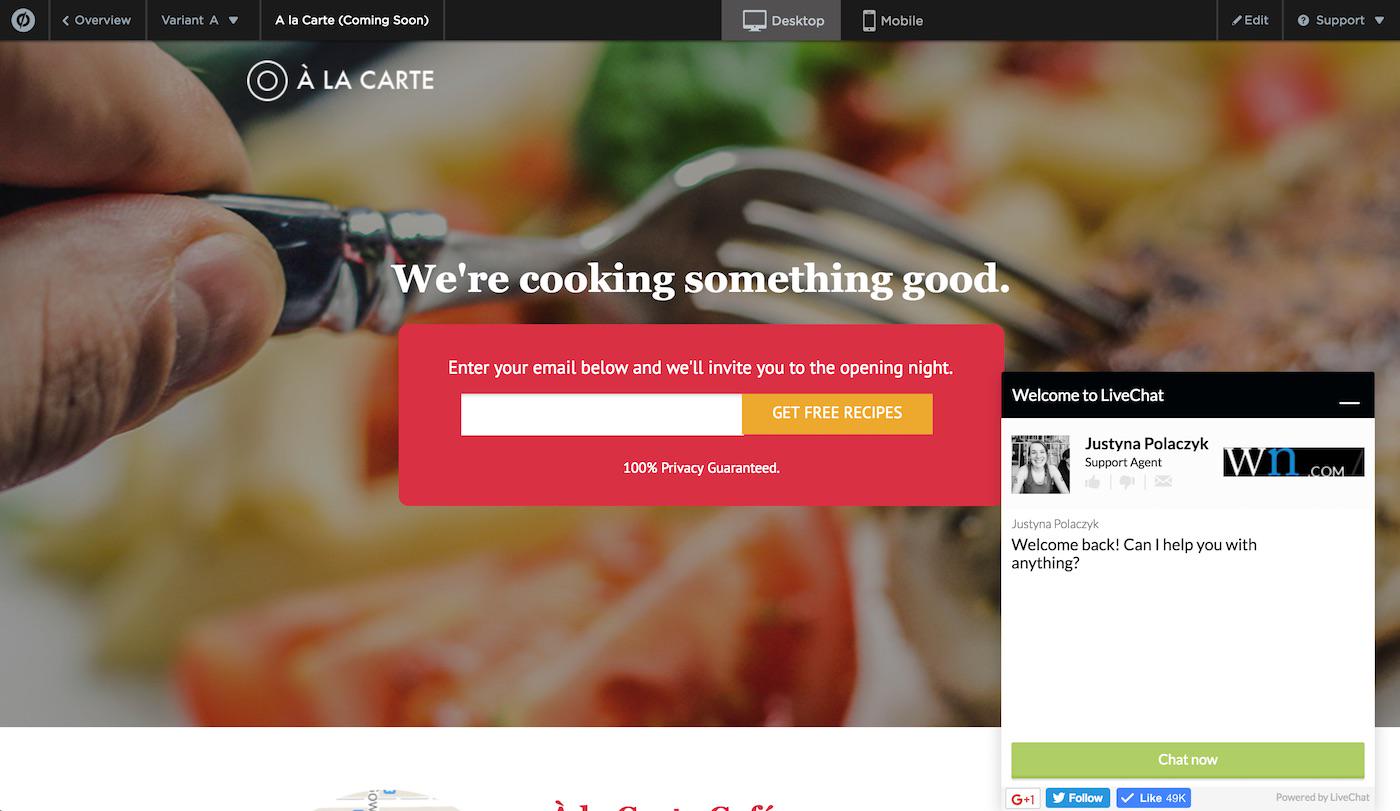
Add LiveChat to an Unbounce landing page so visitors can ask about your offer before completing a form. Your team handles the conversation in LiveChat while the visitor stays on the campaign page.
Use chat when a form alone leaves an important question unanswered: whether you serve a location, support a particular use case, or can meet a deadline. An agent can clarify the requirement before the visitor requests a quote. Review recurring questions when updating the page copy.
How to add LiveChat in the Classic Builder
- In LiveChat, open Settings, then Channels and Website. Copy your installation code.
- Edit the landing page variant in Unbounce's Classic Builder and open Javascripts.
- Name the script LiveChat, select Before Body End Tag, and paste the complete snippet, including its script tags.
- Save the script and page, then publish or republish.
This placement follows the LiveChat code installation instructions. See the Unbounce integration walkthrough for the page editor and Unbounce's JavaScript guide for current controls.
Choose where the widget appears
Use the page editor for an individual variant. To cover pages across a custom domain, use Unbounce Script Manager instead. Select Before Body End Tag, choose main pages under Included on, paste the snippet, select the intended domain, and save. Check whether you also want chat on confirmation pages.
Script Manager covers existing and new pages on the selected domain. It requires a custom domain and cannot be used on unbouncepages.com. Remove any duplicate page-level LiveChat snippet when switching to this method. Follow the Script Manager instructions before applying chat across a campaign.
Test chat on the published landing page
Open the published URL, start a chat, and reply from your LiveChat account. Confirm that the reply reaches the visitor. Repeat on mobile and on each variant that should display the widget. Check that the widget leaves the form and call-to-action usable.
Custom JavaScript does not run in the Classic Builder or its Preview mode. If the widget is missing there, test the published page before changing the installation.
Requirements and pricing
You need a LiveChat account and permission to edit scripts and publish your Unbounce pages. LiveChat offers a 14-day free trial, followed by a paid subscription. Your Unbounce subscription is separate. Review LiveChat plans and pricing before choosing features for your team.
Unbounce live chat questions
Is this a native Unbounce widget?
This integration installs the LiveChat JavaScript snippet. Visitors use the chat widget on your landing page; your team answers in LiveChat.
Do these steps cover Smart Builder?
The page editor steps above apply to Classic Builder. If you use Smart Builder, check the script options available for your page and domain in Unbounce before installing. The Classic Builder controls are not a Smart Builder walkthrough.
Does this connect chat messages to my form integrations?
No form integration is configured by these steps. Adding the widget gives visitors a separate way to speak with your team; it does not send conversations through your Unbounce form workflows.
Key features
Benefits
App terms
Legal Terms
By installing this app, you agree to the Marketplace Terms.
Frequently asked questions
What does the “Verified” status mean?
In LiveChat, we always appreciate creative and problem-solving apps, so at our own sole discretion, from time to time, we may grant some applications the “Verified” status (represented by a badge or so-called badged applications). The “Verified” status confirms only that an application went through our usability review from the user's perspective. In any case, it is the Application Provider who has full responsibility for the application and its security level towards clients and any other third party.