
OpenCart
Give OpenCart shoppers a place to ask questions. Review widget setup and the documented OpenCart 2 extension with cart details.
- LiveChat
Live chat for OpenCart stores
Let shoppers contact your team from your OpenCart storefront and answer them in LiveChat. The right installation depends on your store version and whether you need the extension's cart data alongside the conversation.
Choose an installation for your OpenCart version
The OpenCart extension guide lists downloads for OpenCart 2.0.x, 2.1.x, 2.2.0.0, and 2.3.x. It does not document extension compatibility with OpenCart 3 or 4. For those versions, confirm the installation route with LiveChat support before using an older plugin.
LiveChat's JavaScript widget installation is a separate option for websites where you can edit the page source. Your developer can assess that method for your OpenCart theme. It adds the chat widget; it does not configure the OpenCart extension's cart data.
What the OpenCart 2 extension adds
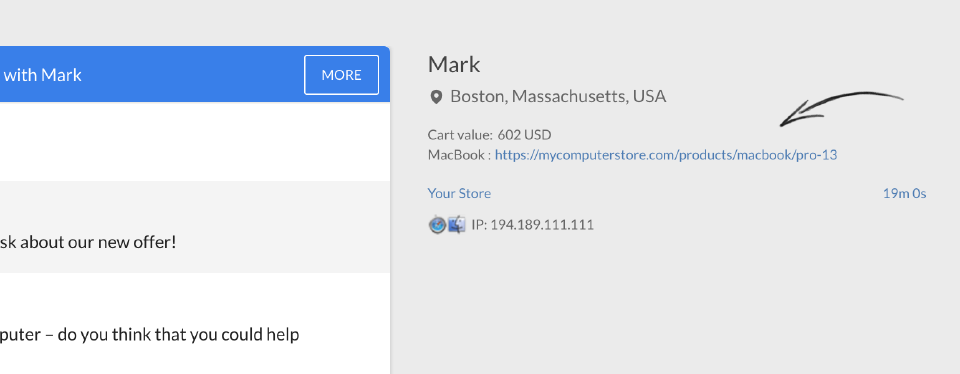
The documented module lets you assign chat to selected layouts. Enabling Show cart details gives agents the cart value, product links, and product details. If a shopper asks about an item, the agent can open its product link and check the specification being discussed.
Choose this route for a compatible store when your team needs cart context. For a store that only needs a place to ask questions, assess the standard widget with your developer.
Install the documented OpenCart extension
- Download the plugin matching your store version and upload its files following the guide.
- In OpenCart, open Extensions, select Modules, and edit LiveChat.
- Enter your LiveChat login email, enable the module, and save. Enable Show cart details if needed.
- Under Design, open Layouts. Add LiveChat to Content Bottom on each layout where chat should appear.
- Test the selected pages and send a message. With cart details enabled, add a test item and inspect the information in LiveChat.
Install the widget with code
In LiveChat, open Settings, then Channels, then Website, and copy the installation code. Ask your developer to place it before the closing body tag in the pages where chat should appear. Refresh a published page and send a test message. Confirm the result on your actual theme before relying on this setup.
Accounts and pricing
You need a LiveChat account and access to configure your store. A new account includes a 14-day free trial; continued use requires a paid subscription. Review LiveChat plans separately from your OpenCart hosting and development costs.
OpenCart live chat questions
Why is chat missing from a product page?
For the documented extension, check that the module is enabled and assigned to that page's layout. For a code installation, check whether the page includes the widget snippet.
Does widget installation include cart tracking?
The cart details described on this page require the OpenCart extension and its Show cart details setting. The standard JavaScript snippet alone does not add that OpenCart connection.
Key features
Benefits
App terms
Legal Terms
By installing this app, you agree to the Marketplace Terms.
Frequently asked questions
What does the “Verified” status mean?
In LiveChat, we always appreciate creative and problem-solving apps, so at our own sole discretion, from time to time, we may grant some applications the “Verified” status (represented by a badge or so-called badged applications). The “Verified” status confirms only that an application went through our usability review from the user's perspective. In any case, it is the Application Provider who has full responsibility for the application and its security level towards clients and any other third party.