
Ecwid
Connect LiveChat to your Ecwid store to answer product questions and help shoppers while they browse.
- LiveChat
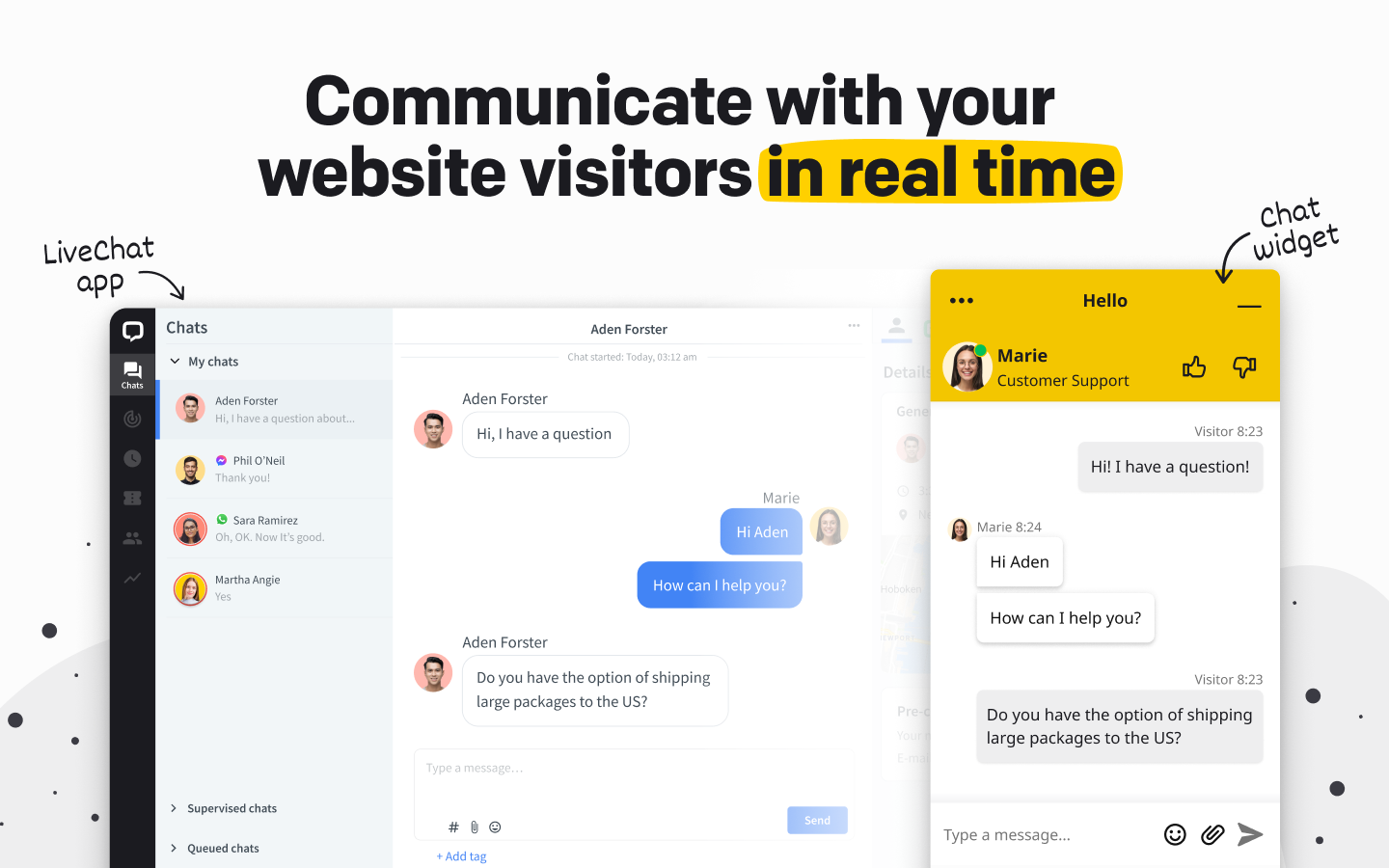
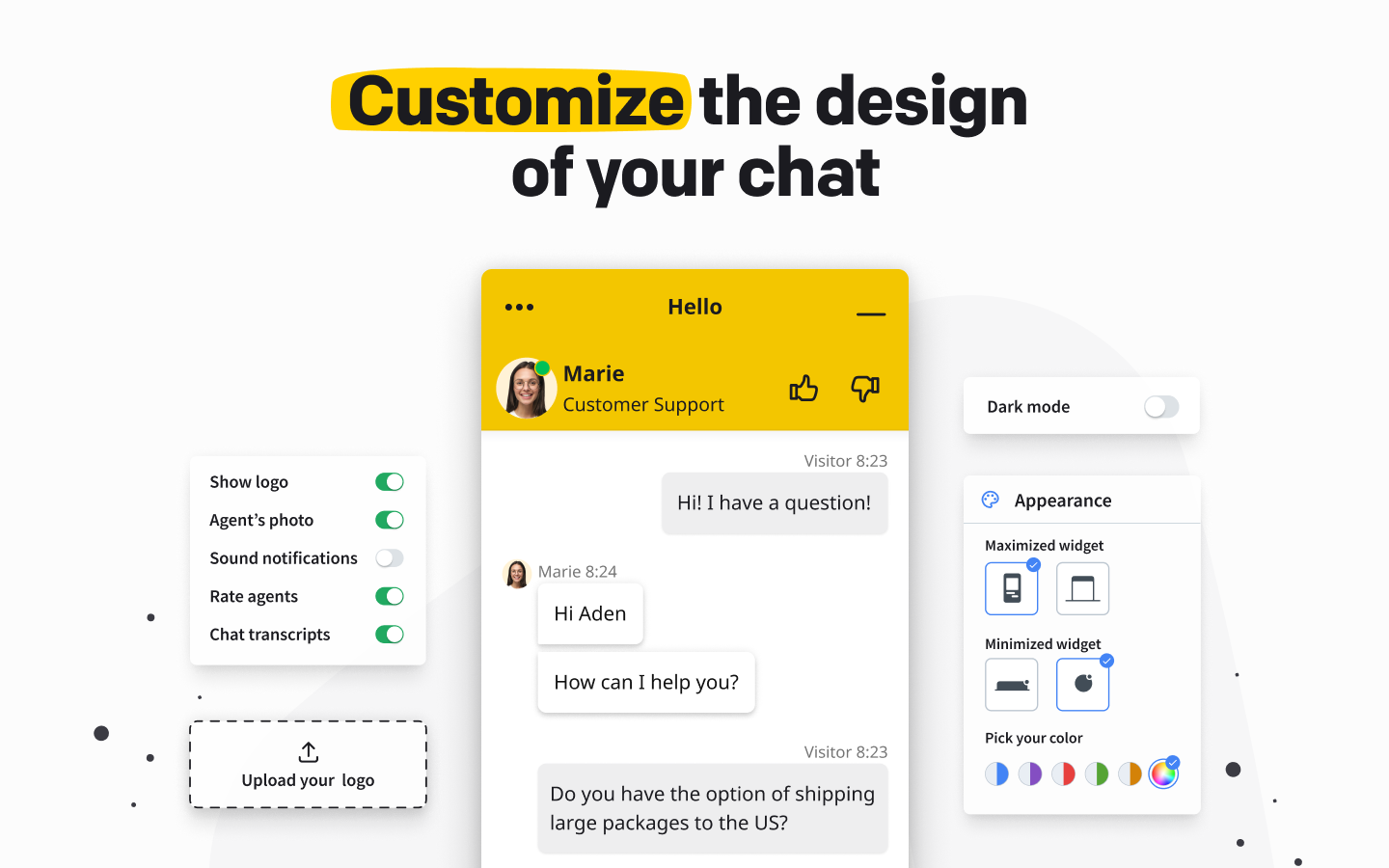
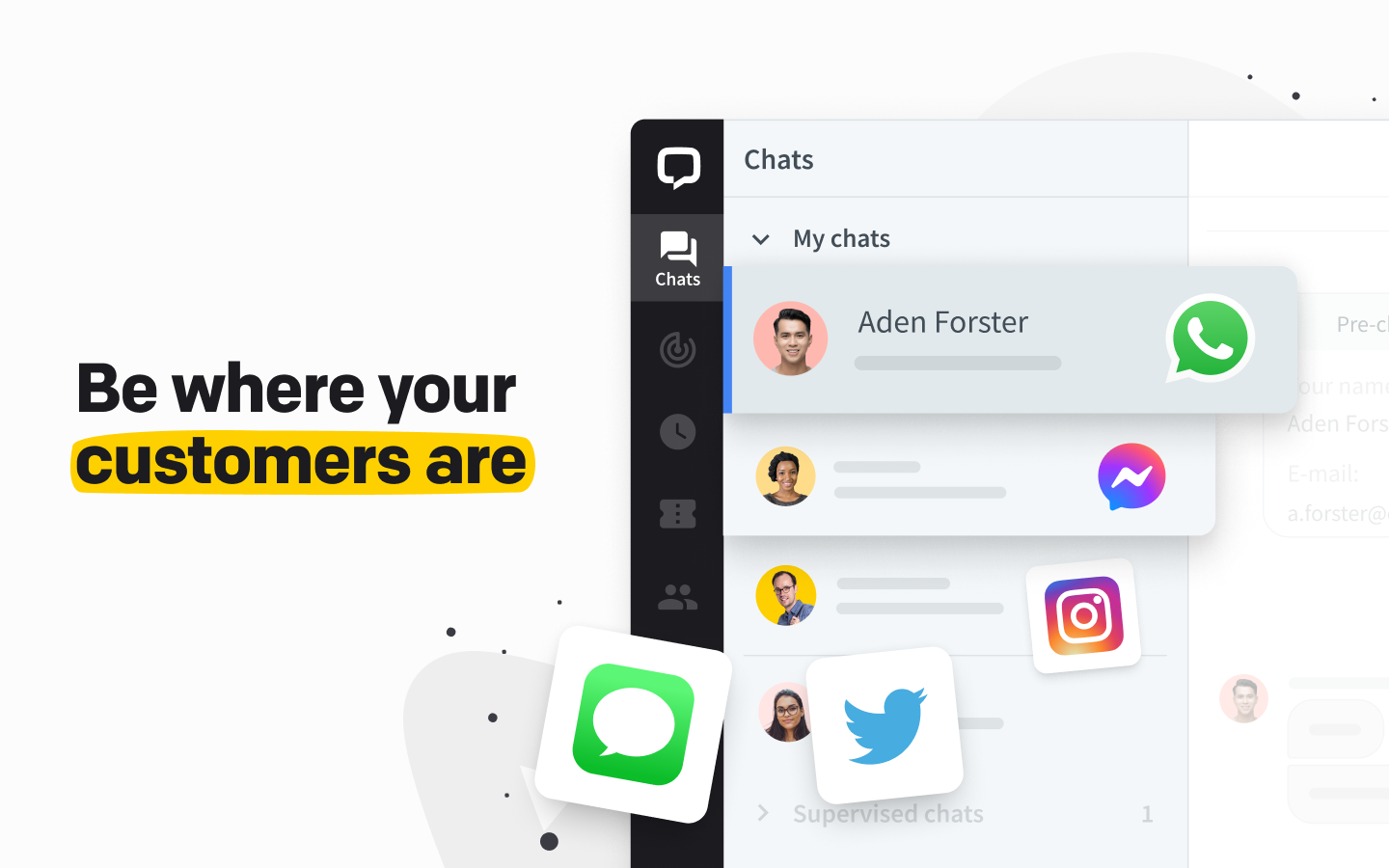
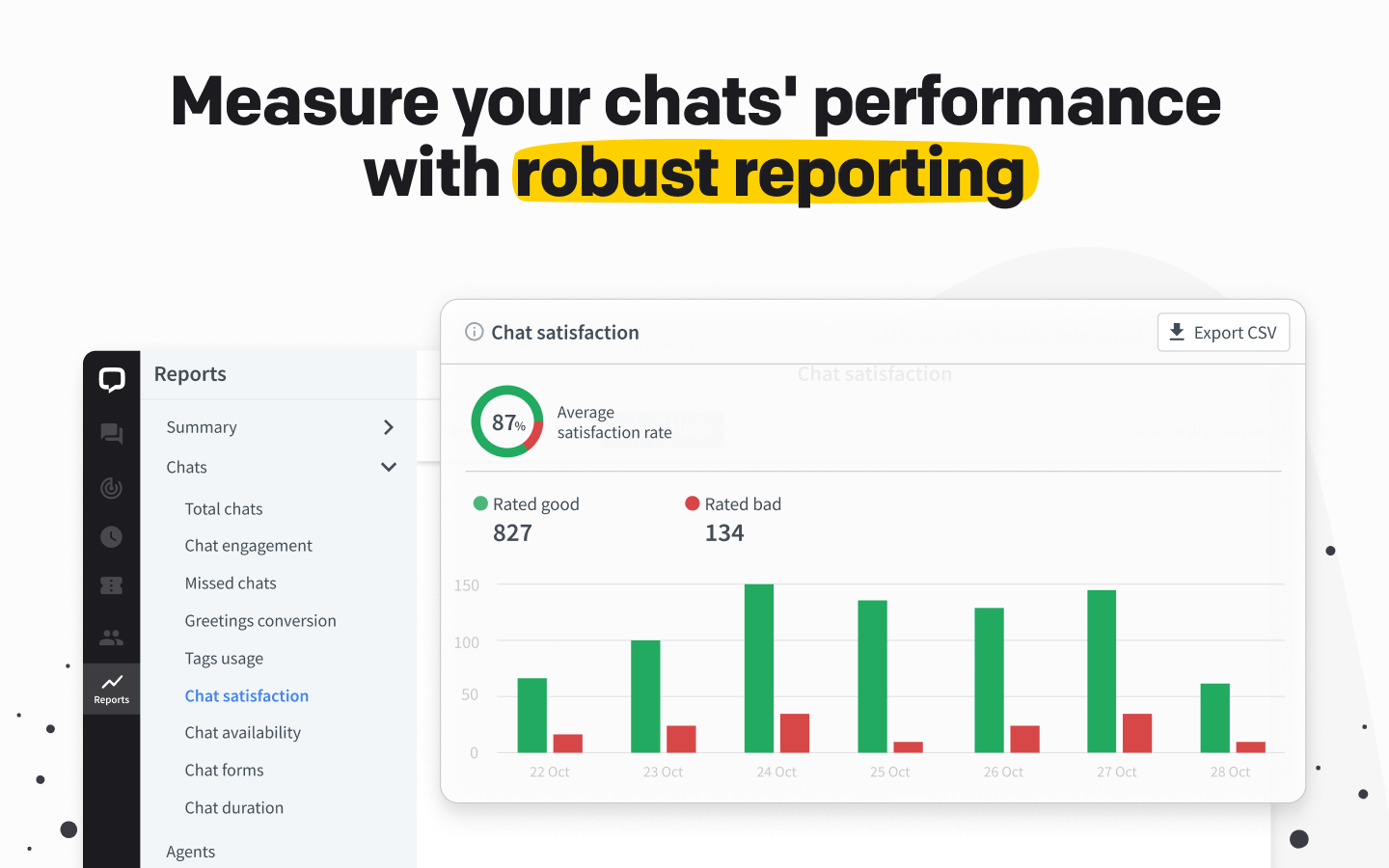

Live chat for your Ecwid store
Connect LiveChat to Ecwid so shoppers can ask your team questions while browsing your store. The app adds a chat widget, and your agents answer in LiveChat. Visitor activity helps them understand which part of the store a customer is viewing.
Help shoppers with the product they are viewing
Use browsing context to start with the relevant product or policy. For example, a customer looking at a table may ask whether it will fit their room. Your agent can check the dimensions in your catalog, discuss the available space, and send the product page link in chat.
You can also set a proactive greeting to offer help while a visitor browses. The agent still needs to check your store's product and delivery information before answering. This installation guide covers website chat and visitor activity; it does not describe an Ecwid order-editing tool.
Ecwid requirements and LiveChat pricing
You need an Ecwid store that can install the LiveChat app from the App Market, plus a LiveChat account. In Ecwid admin, open Apps, find LiveChat, and check that installation is available for your store before choosing a subscription. If Ecwid asks you to upgrade, confirm the required plan with Ecwid support.
Connect your existing LiveChat account or create one during setup. LiveChat offers a 14-day trial and requires a paid subscription for continued use. Your Ecwid subscription is separate. Check the Ecwid LiveChat listing and current LiveChat plans for billing details and campaign limits.
How to add LiveChat to Ecwid
- Sign in to Ecwid and open Apps, then App Market.
- Search for LiveChat and open its listing.
- Select Install and confirm the requested permissions.
- Create a LiveChat account or select Log in to connect an existing one.
- Select Open LiveChat app to complete the connection.
- Refresh your public storefront. Open a product page, send a test message, and reply from LiveChat.
The Ecwid installation tutorial shows the app connection. If your store appears on more than one website, check the widget on each public storefront where you want to offer chat.
Ecwid live chat questions
Where does my team answer messages?
Use the LiveChat web or desktop app. Android and iOS apps are also available for agents answering away from their desks.
Can I invite a shopper to chat?
Yes. LiveChat supports proactive greetings based on visitor behavior. Set a relevant invitation and check the campaign limits of your plan.
What should I check if the widget is missing?
Check that the app appears in Ecwid under Apps, then My Apps, and that you finished connecting your LiveChat account. Refresh the published storefront and review the installation tutorial. If it still does not appear, contact LiveChat support with the storefront address.
Key features
Benefits
App terms
Legal Terms
By installing this app, you agree to the Marketplace Terms and App Privacy Policy.
Frequently asked questions
What does the “Verified” status mean?
In LiveChat, we always appreciate creative and problem-solving apps, so at our own sole discretion, from time to time, we may grant some applications the “Verified” status (represented by a badge or so-called badged applications). The “Verified” status confirms only that an application went through our usability review from the user's perspective. In any case, it is the Application Provider who has full responsibility for the application and its security level towards clients and any other third party.