


Add a chat widget to your website so visitors can reach you while they browse. For a new setup, we recommend using Text. This guide starts with installation in the Text App, followed by the instructions for existing LiveChat users.
Choose your setup:
Install the Text widget on your website
You can add the Text widget with a short JavaScript snippet. If you use WordPress, Shopify, Webflow, or Google Tag Manager, you can also follow one of the alternative installation guides below.
Before you start
You’ll need a Text account and access to edit your website’s HTML or shared page template. If someone else manages your website, ask them to add the installation code for you.
1. Open your website widget settings
In the Text App, go to Settings → Website widgets.
2. Enter your website address
Enter the URL of the website where you want the widget to appear, then select Continue.

3. Choose the installation method
Select Embed code, then select Continue.

4. Copy your installation code
Open the HTML tab and select Copy code. Use the snippet generated in your account for this widget.

5. Add the code to your website
Paste the snippet into your website’s HTML just before the closing </body> tag. Save your changes and reload the page.
To display the widget across your site, add the snippet to a shared footer or layout used by those pages. To display it on one page, add it to that page only.
6. Check that the widget is connected
Visit your website and open the widget. In the Text App, return to Settings → Website widgets and check that the website’s status is Connected.
If the status hasn’t updated, interact with the widget on your website, then check again. Text uses that activity to detect the connection.

Other ways to install the Text widget
Use the guide that matches your website:
- Install Text on WordPress
- Connect Text to Shopify
- Connect Text to Webflow
- Install Text through Google Tag Manager
- Install Text in a React, Vue, or Angular application
After installation, customize your Text widget to match your website. For more installation options, including adding the widget to another site, see the Text website-widget guide.
Using LiveChat? The instructions below explain how to install and configure the widget in your LiveChat account.
Installing LiveChat window is simple and only takes a few minutes. Once installed, you’ll be able to talk to your customers right away.
Install chat widget using a JavaScript code snippet
If you haven’t already, sign up for a free, 14-day trial (no credit card needed). Once you’ve created an account, follow these steps to add the widget:
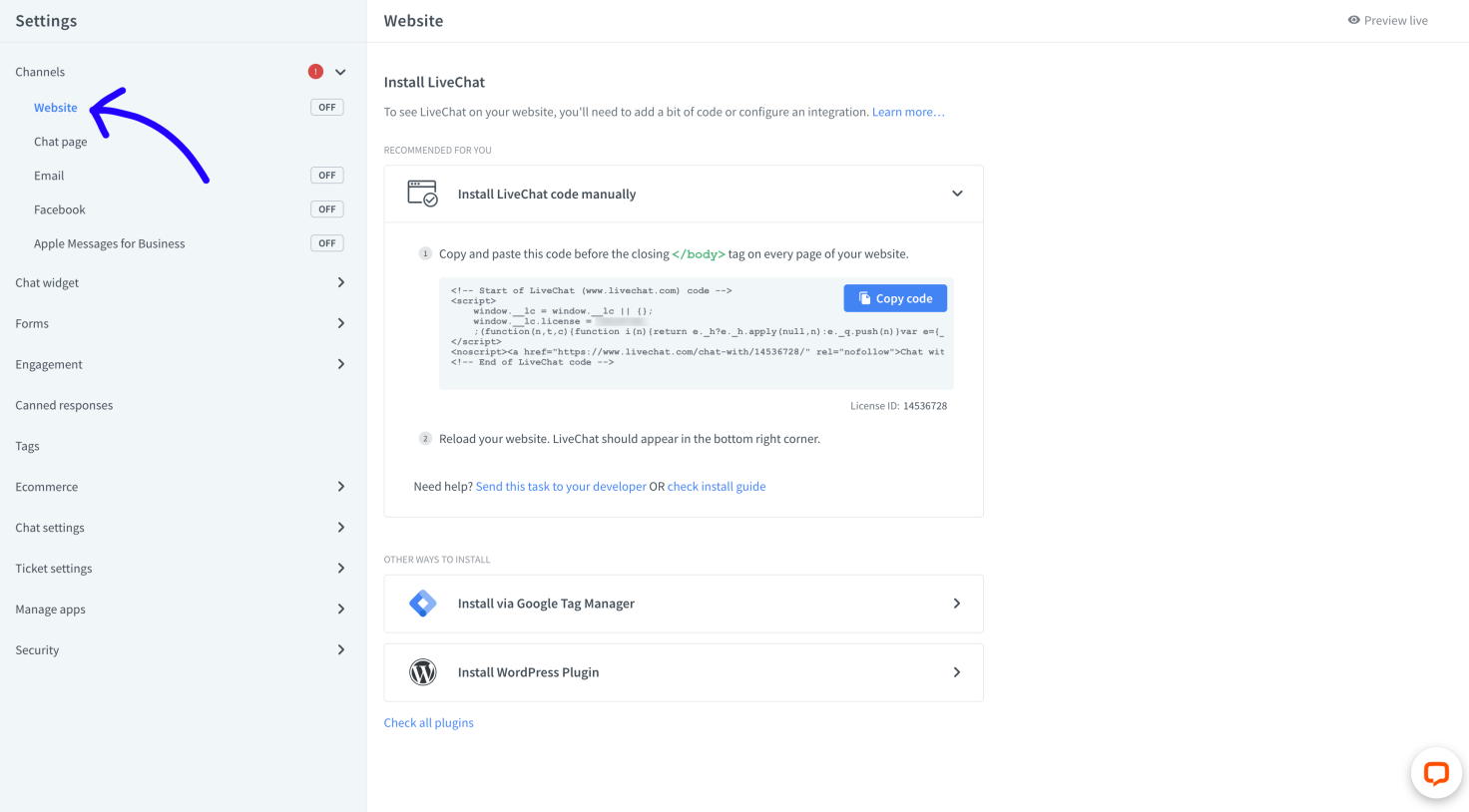
- Log in to your LiveChat account and go to Settings > Channels > Website.
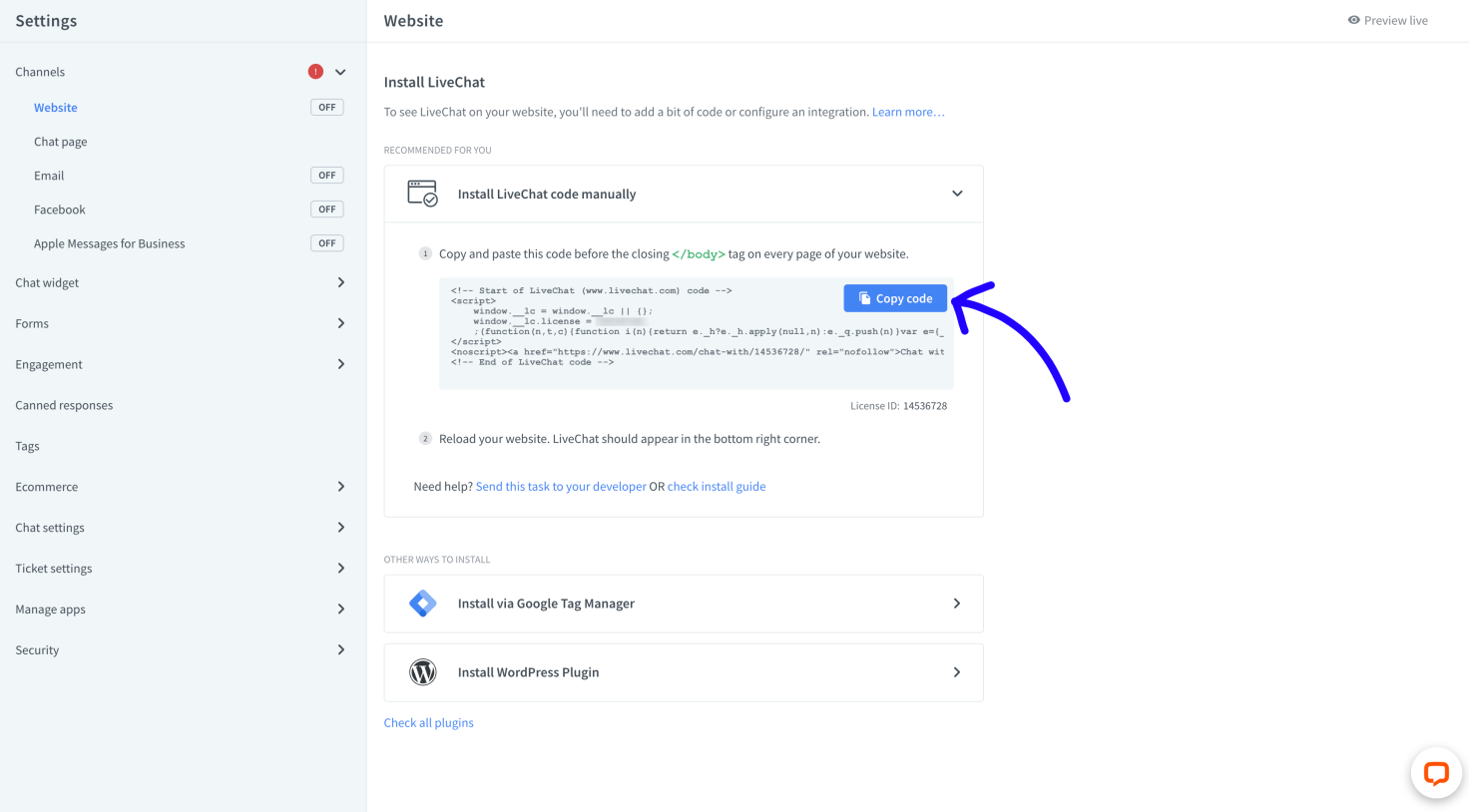
- Then, click on Copy code.
-
Paste the code to your website’s source code before the
</body>tag. -
Once you’ve successfully added the LiveChat code to your website, refresh the page. You should see a widget in the bottom right corner.
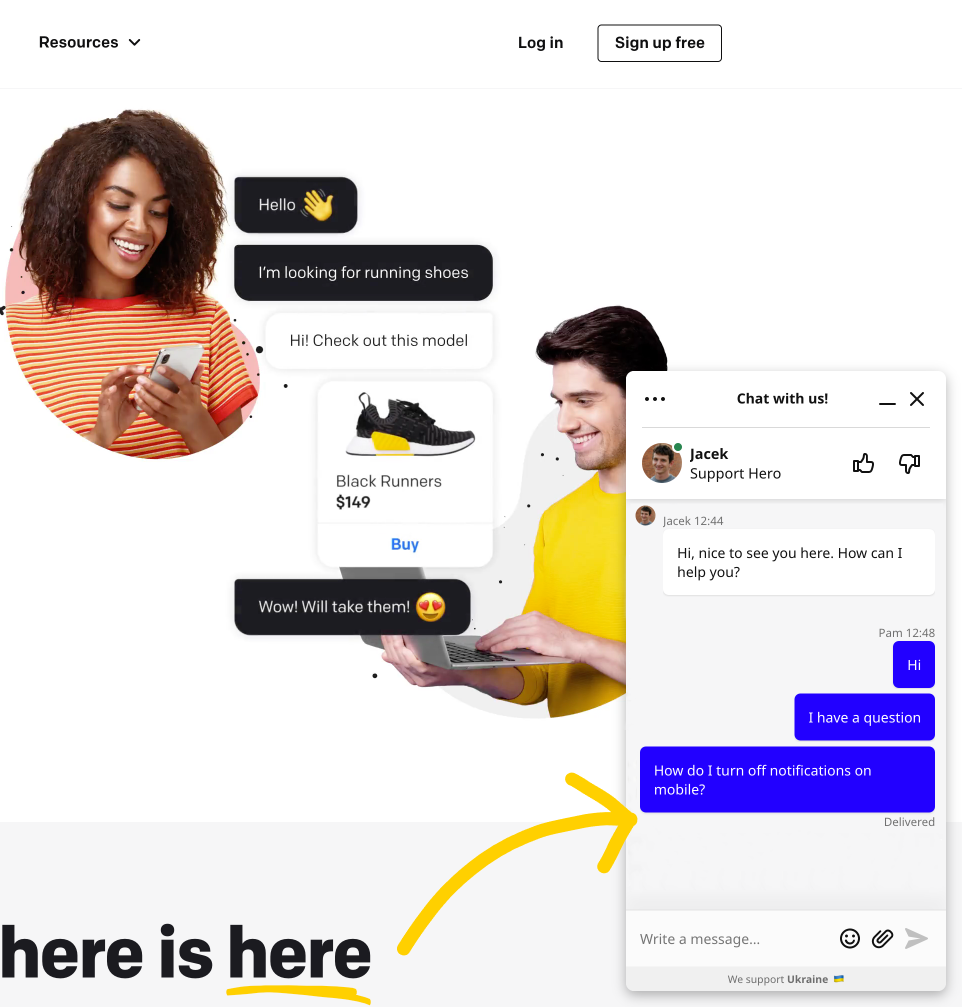
Have any issues with adding a chat feature to your website? Our Support Heroes can help (and are available 24/7).

Embed LiveChat widget using integrations
Running your website on platforms like WordPress, Shopify or Bigcommerce? We’ve got you covered!
We offer detailed chat window setup tutorials for just about any CMS, web builder, and ecommerce platform out there. Here are some of the most popular ones:
- Bigcartel
- Bigcommerce
- Drupal
- Facebook Messenger
- Joomla
- Magento 1
- Magento 2
- Opencart
- Segment
- Shopify
- Weebly
- WHMCS
- Wix
- WooCommerce
- Wordpress
- Zen Cart
Not what you are looking for? Visit Marketplace to see more 3rd party integrations. Once you are there, use the search bar to find the web host you’re using.
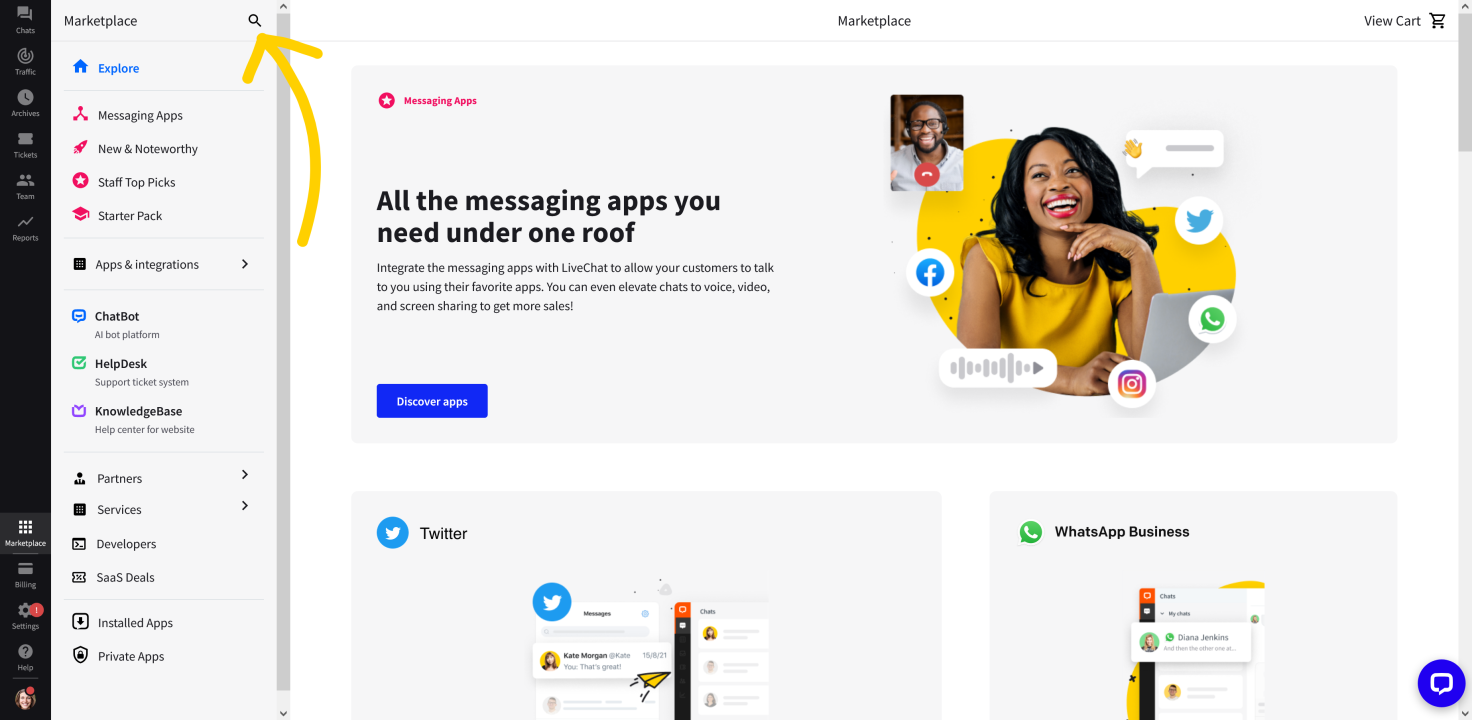
All integrations come with a step-by-step tutorial, which you can also access from Marketplace.
What’s next?
- Customize the chat widget—so it matches your site’s design. Read more about our easy to use chat widget configurator.
- Add chat box greetings—increase the number of incoming chats by setting automatic invites (we call them greetings).
- Watch a product tour—learn the ins and outs of LiveChat from people who use it every day. Watch a product tour video.
- Read our handbook—check out Agent’s Handbook that quickly explains essential LiveChat features.
- Share your chat with your audience—get a direct link to your chat page and share it wherever you need without any coding.
