

Take your LiveChat experience to the next level with HelpDesk.com! This advanced tool simplifies email management and turns your chats into manageable tickets. With HelpDesk.com and LiveChat working together, multichannel communication becomes a breeze.
Why pair HelpDesk.com with LiveChat?
- Smooth experience. HelpDesk.com and LiveChat are built with the same design system, so they work together perfectly.
- Easy access. HelpDesk.com is embedded right in your LiveChat app. Just check the left-hand navigation bar.
- Familiar but better. You’ll find all the tools you know and love, plus some cool new features to make managing emails even easier.
How to add the HelpDesk.com integration to LiveChat
1. Go to the HelpDesk.com app in the LiveChat Marketplace. Click “Get.”
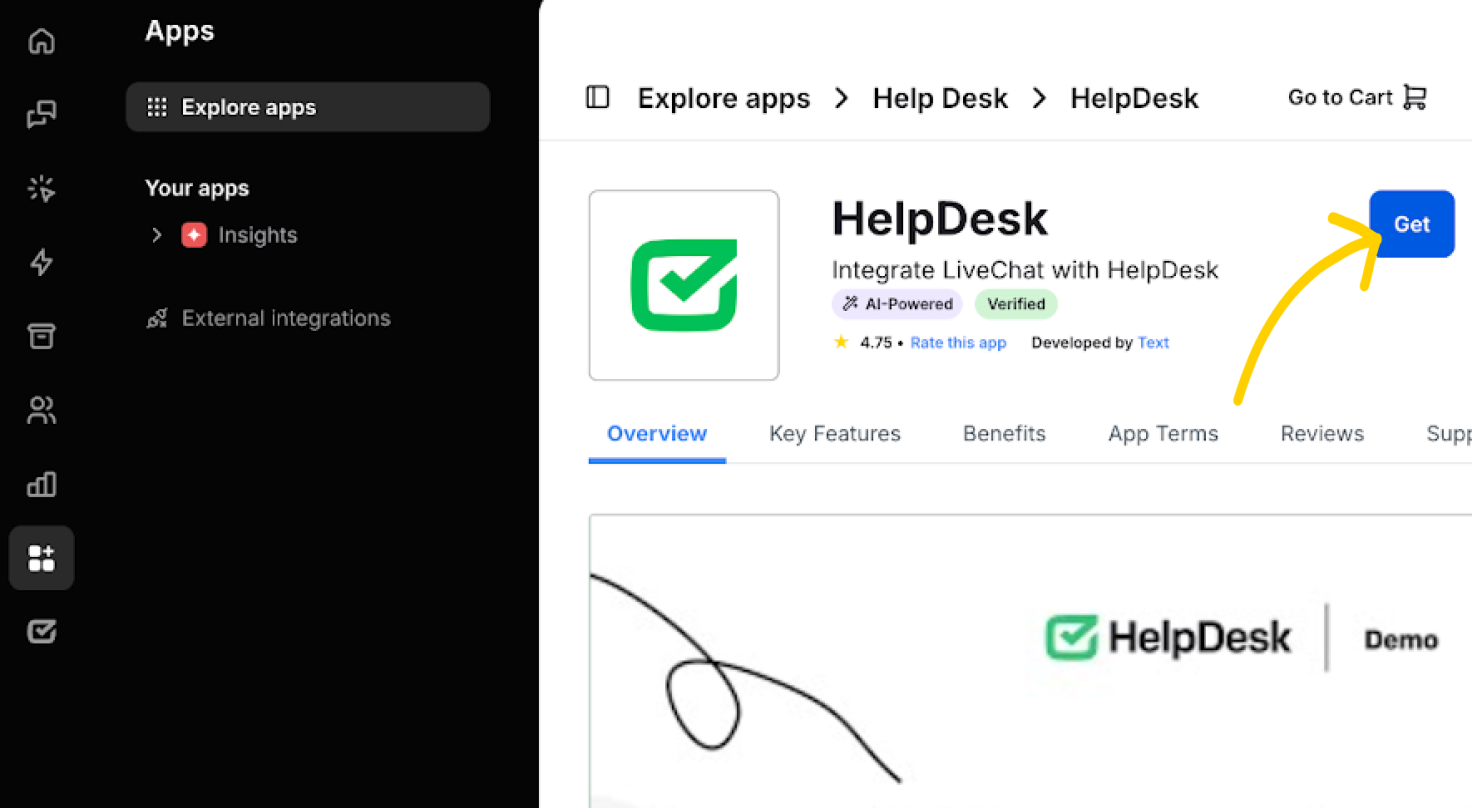
2. Once the app is installed, log into your HelpDesk.com account. Make sure that the organization owner is the same for both LiveChat and HelpDesk.com to avoid integration issues.
3. And that’s it! Your HelpDesk.com integration is ready to use.
By default, the integration lets you create tickets when you chat.
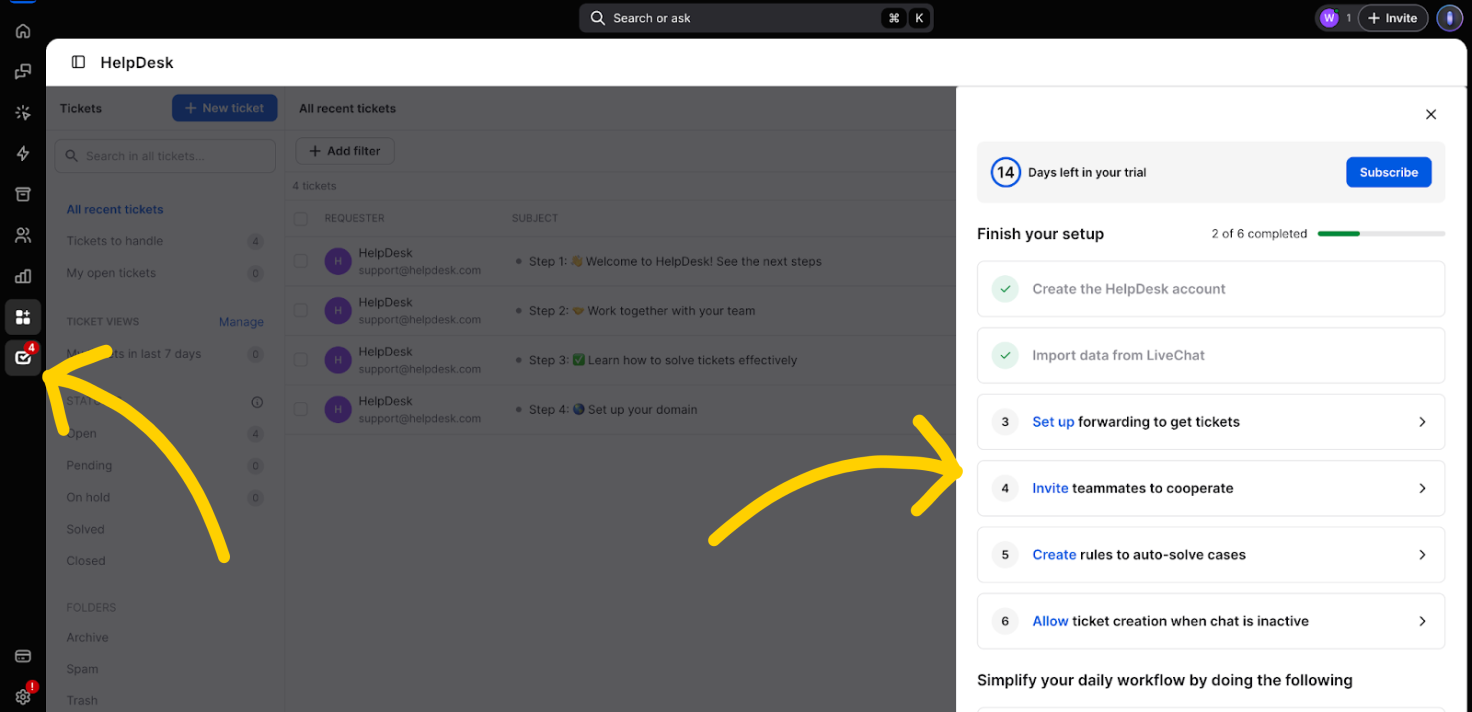
You can easily add HelpDesk.com to your toolkit by clicking the HelpDesk.com logo in the left-hand menu. Follow the onboarding steps on the right side panel to advance faster.
Replace LiveChat’s Tickets with HelpDesk.com
To take the LiveChat-HelpDesk.com integration one step further, import data from LiveChat and replace the “Tickets” section with HelpDesk.com.
Importing data from LiveChat to HelpDesk.com causes several changes:
General
- The import is only possible with an existing LiveChat and HelpDesk.com integration, and it hasn’t been done before.
- You can import agents, teams, canned responses, and tags.
- All agents, groups, canned responses, and tags are copied to HelpDesk.com (the data isn’t deleted from LiveChat).
- The import feature isn’t available to agents or viewers.
- Reinstalling HelpDesk.com in LiveChat preserves the import status, preventing a repeat of the import process.
- Manual import of new agents is still available through the “Agents” tab despite the previous import status.
Agents and groups
- All LiveChat users will receive emails inviting them to join HelpDesk.com.
- When importing LiveChat tickets into HelpDesk.com, the users will retain the same roles and be billed according to your selected HelpDesk.com plan. This ensures that tickets remain assigned to the appropriate users.
- Agents who are suspended or have the status of pending or waiting for approval won’t be imported.
- The General group from LiveChat will be set as the default team in HelpDesk.com automatically.
- If an agent was previously imported manually to HelpDesk.com, any differences in their team assignments will be updated during the automatic import process.
After the import, the applications still have separate “Settings” sections.
How to import data from LiveChat to HelpDesk.com
On desktop:
- In HelpDesk.com, go to Settings > Apps and integrations > LiveChat.
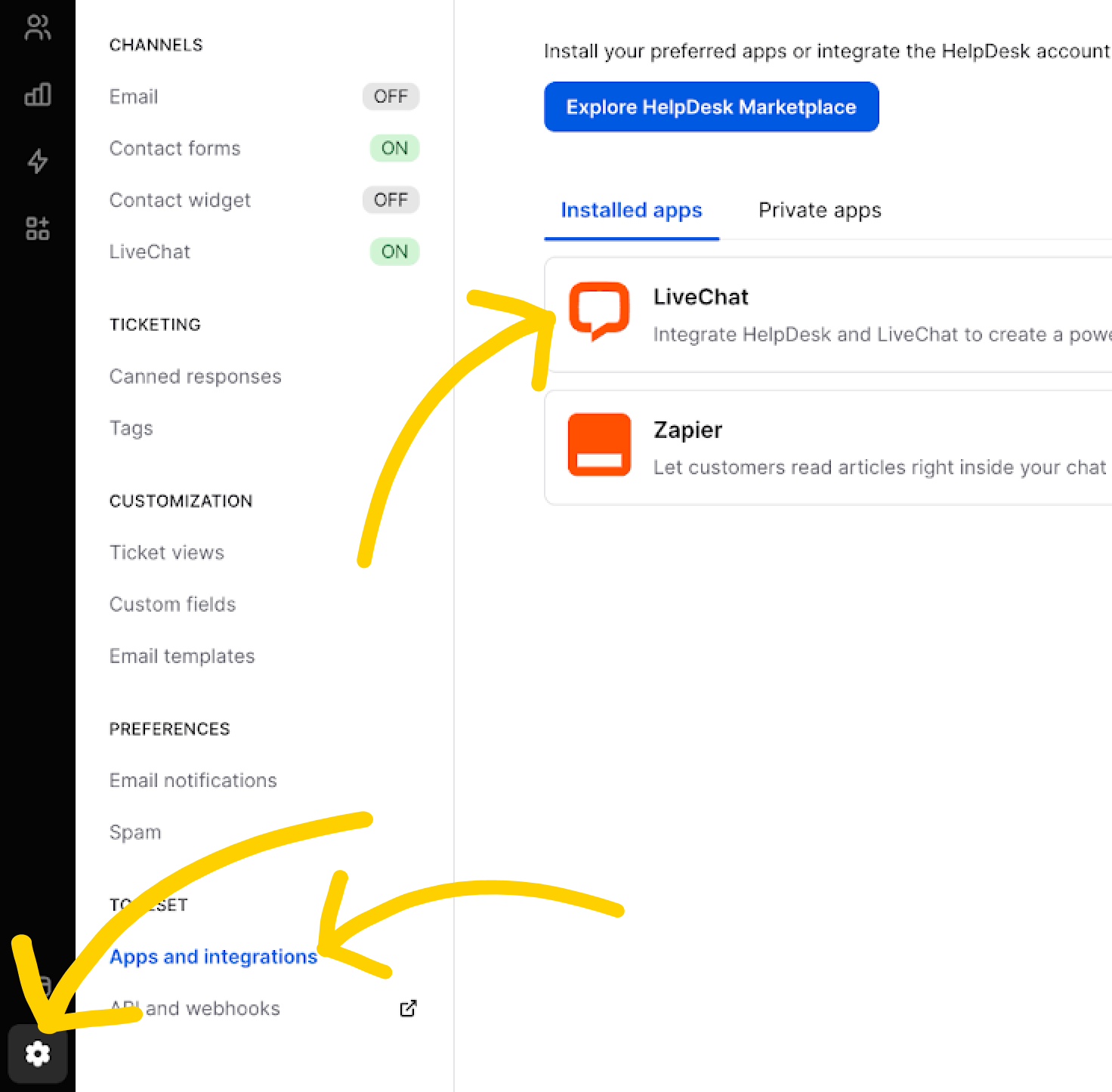
- Choose the data you want to bring over (tickets, agents, groups, canned responses, tags). Click “Import” to get started.
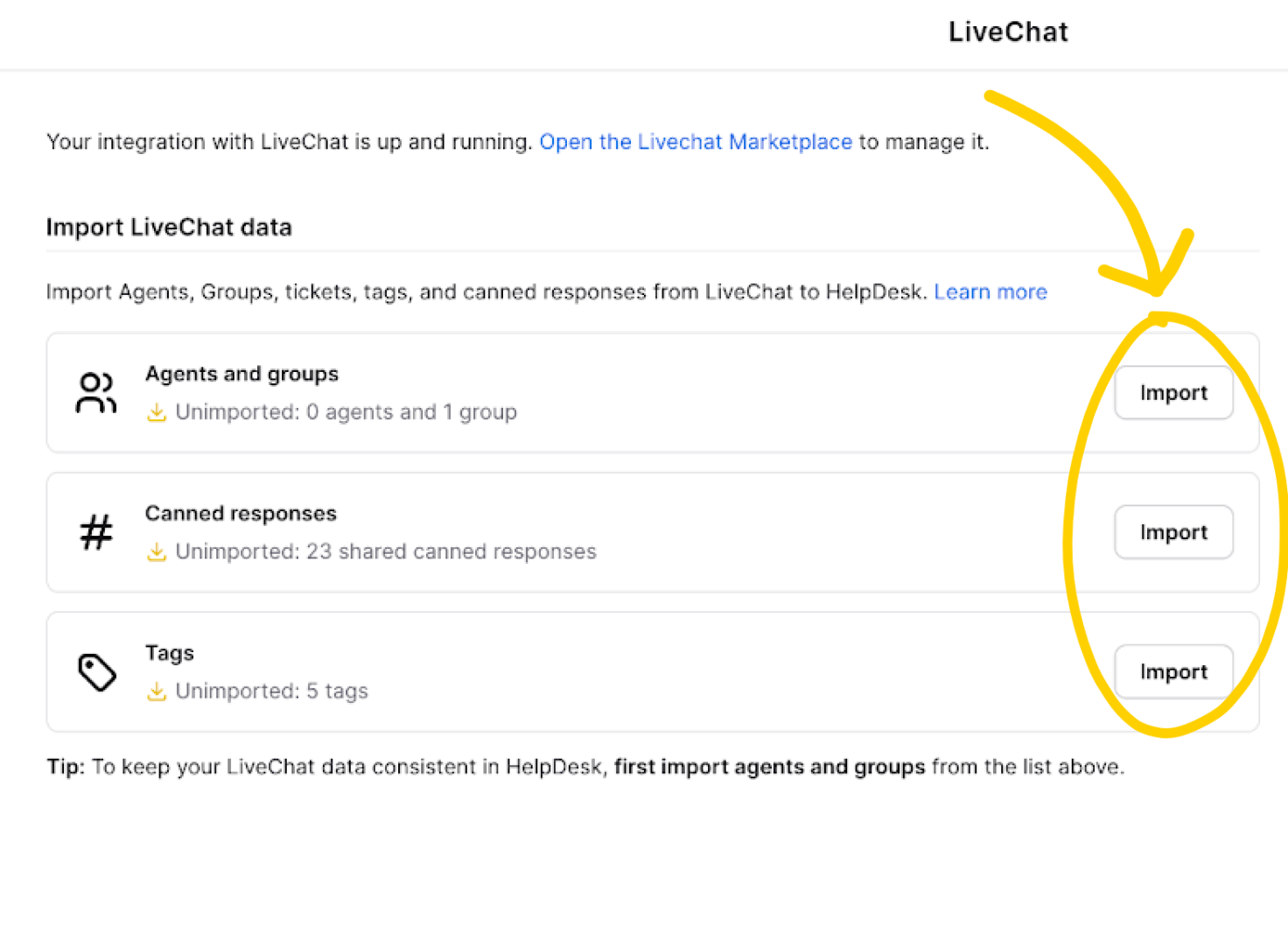
- Read more about importing LiveChat data to HelpDesk.com.
Switching back to separate LiveChat and HelpDesk.com apps
No problem! You can always uninstall the integration from the LiveChat Marketplace. This will restore LiveChat’s original setup while keeping your HelpDesk.com data intact.
Forward ticket form messages to HelpDesk.com without importing data
If you’re not ready to import your data but still want ticket messages sent to HelpDesk.com, here’s how to set it up:
- In LiveChat, go to Settings > Website widget > Availability.
- Here, select the “Only when agents are accepting chats” option.
- Save your changes.
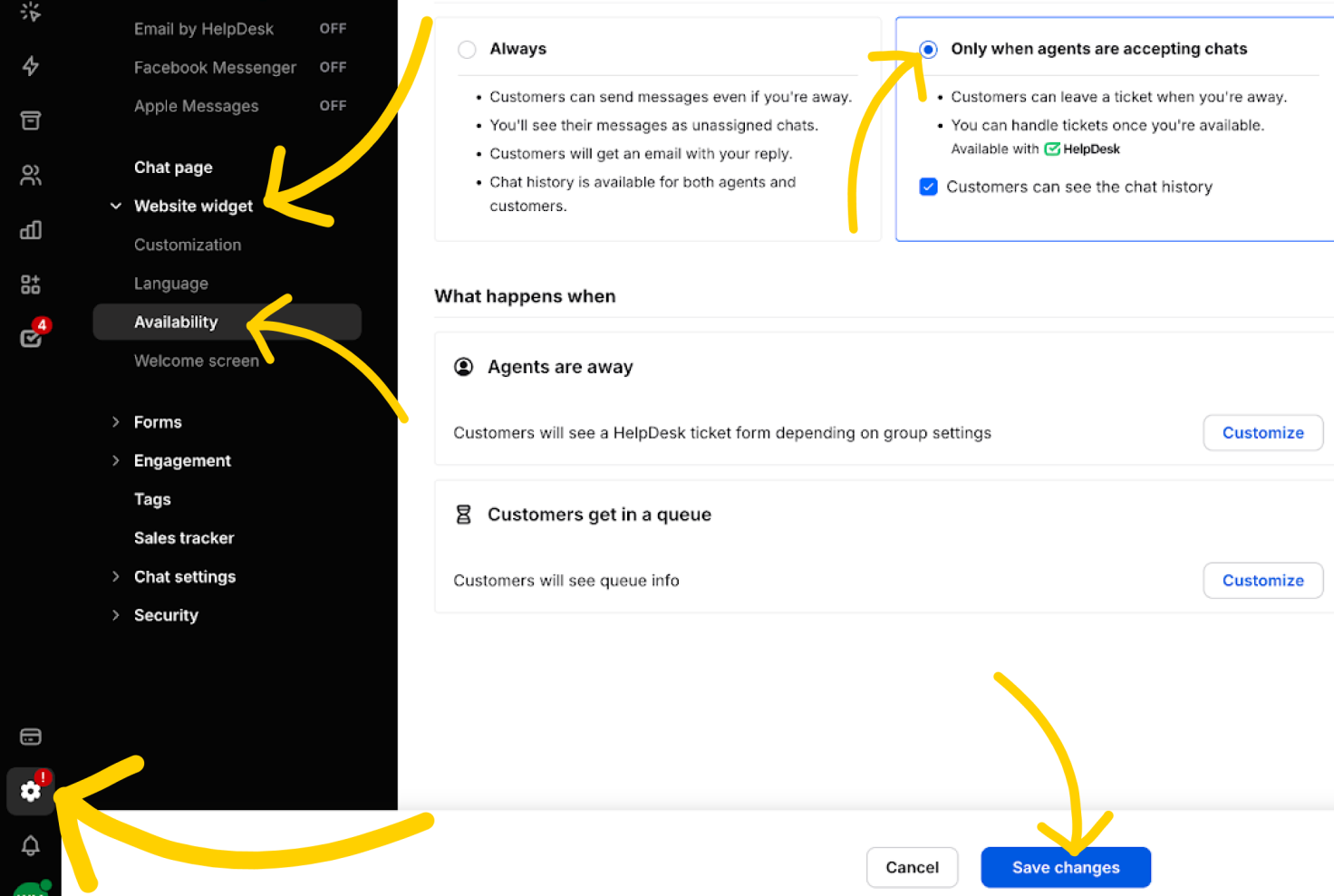
Now, all your ticket form messages will head straight to HelpDesk.com!
How to forward ticket form messages to HelpDesk.com
If you don’t want to connect the apps using import (as described above), set up ticket form forwarding.
Go to LiveChat’s Settings > Forms > Ticket form. In the “Send ticket form messages to” section, choose “HelpDesk.com.” Save changes.
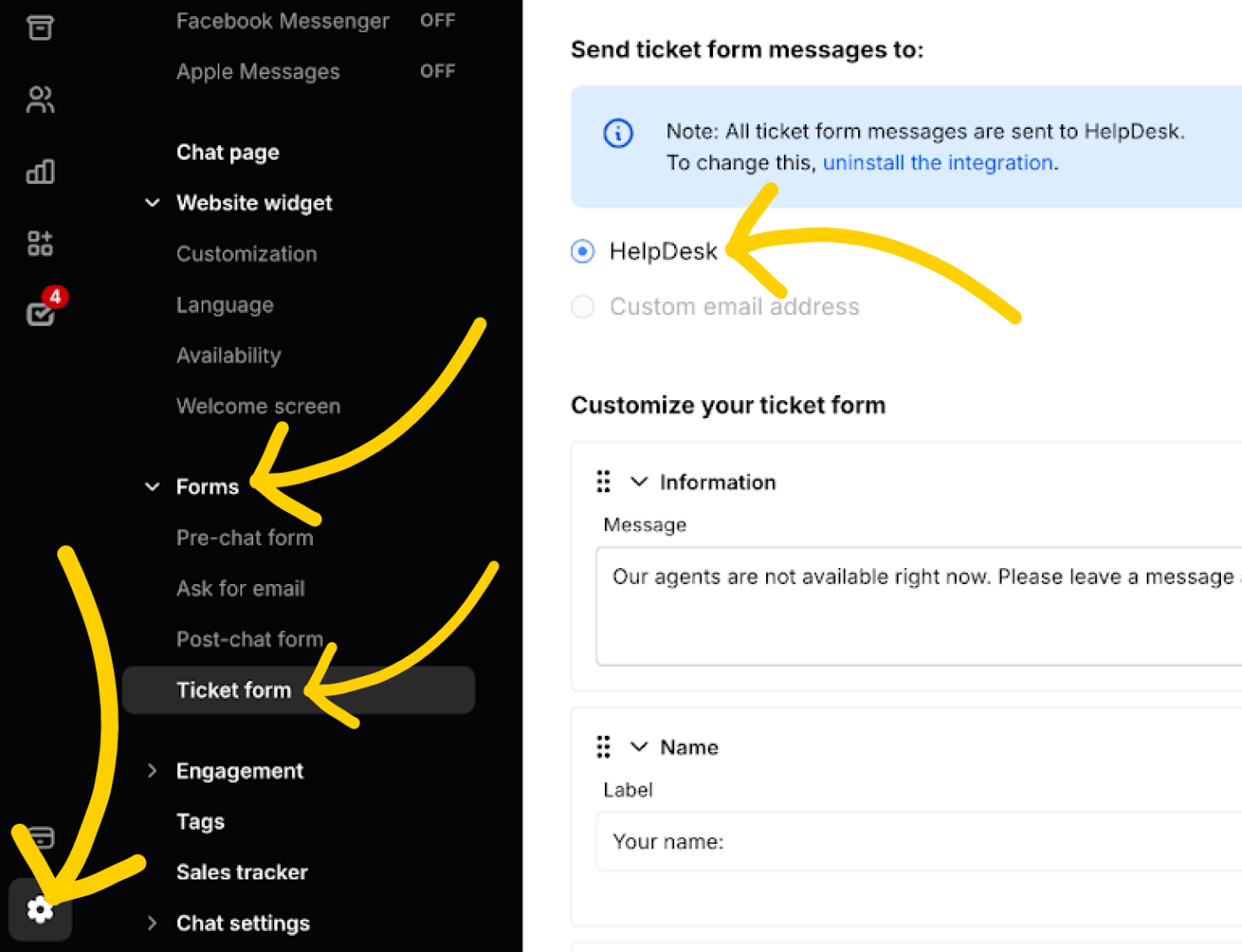
Your ticket form messages will now be sent to HelpDesk.com.